Move to iOS
So you’ve finally decided to make the big switch from Android to iOS, huh? First of all, welcome to the club! It's a pretty exciting move, but I know how daunting it can be to transfer all your data to a new device. Thankfully, Apple has got your back with their handy app, Move to iOS. Let’s dive in and see how this app can make your transition smoother than you might expect.
So you’ve finally decided to make the big switch from Android to iOS, huh? First of all, welcome to the club! It's a pretty exciting move, but I know how daunting it can be to transfer all your data to a new device. Thankfully, Apple has got your back with their handy app, Move to iOS. Let’s dive in and see how this app can make your transition smoother than you might expect.
Getting Your Transfer Started
First things first, you’ll need to download the Move to iOS app from the Google Play Store on your Android device. Once that’s done, the setup is pretty straightforward. You’ll be prompted to connect your Android and iOS devices by entering a code that appears on your iPhone. This secure connection ensures that your data stays safe during the transfer process. Oh, and make sure both devices have enough battery life because you don't want them dying halfway through the transfer, trust me!
What Moves and What Doesn't?
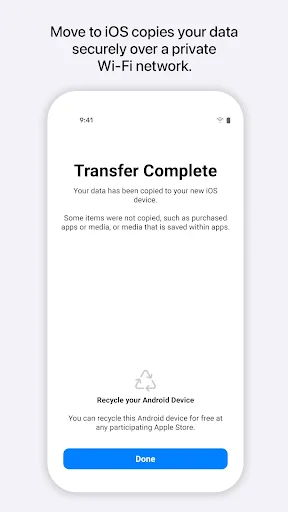
Move to iOS is designed to transfer a wide array of your data. We’re talking about contacts, message history, photos, videos, web bookmarks, mail accounts, and calendars. It even helps you rebuild your app library on iOS by suggesting free apps to download from the App Store that match the ones you had on Android. Pretty neat, right? However, remember that paid apps and some in-app purchases won’t make the jump.
Putting the App to the Test
Honestly, I was a bit skeptical at first. I mean, how often do things actually work as seamlessly as advertised? But, I must say, Move to iOS impressed me. The transfer was quick and painless, taking only about 20-30 minutes for my data to make the leap. I appreciated the app’s simplicity - even if you’re not tech-savvy, you’ll find it easy to use. Just follow the prompts, and you’re golden.
One thing to note is that you need to perform the transfer during the initial setup of your new iPhone. If you’ve already set up your new device, you’ll have to reset it to factory settings to use Move to iOS, which is something to keep in mind before you start tinkering around.
Wrapping It All Up
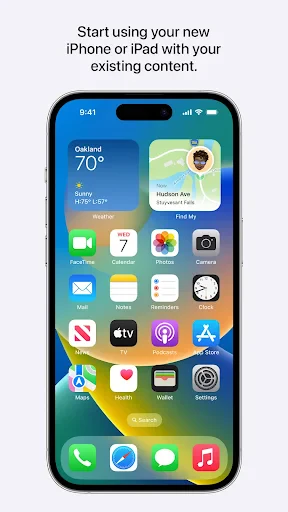
All in all, Move to iOS is a solid app that fulfills its promise. It makes what could be a stressful transition a lot more manageable. While it may not transfer everything (looking at you, paid apps), it covers the essentials. So, if you’re ready to embrace the iPhone life, this app is your perfect companion to help you hit the ground running.
Happy switching!

- Developer
- Apple
- Version
- 4.0.3
- Installs
- 100,000,000+
- Android Version
- 6.0
- Content Rating
- Everyone
- Price
- Free
- Seamless data transfer from Android to iOS.
- Supports transfer of contacts
- messages
- and more.
- No need for cables or computers.
- Requires both devices to be connected to Wi-Fi.
- Transfer speed can be slow at times.
- Limited to transferring data to new or reset iPhones.
- Some data types may not be transferred.
- May not work with older Android devices.